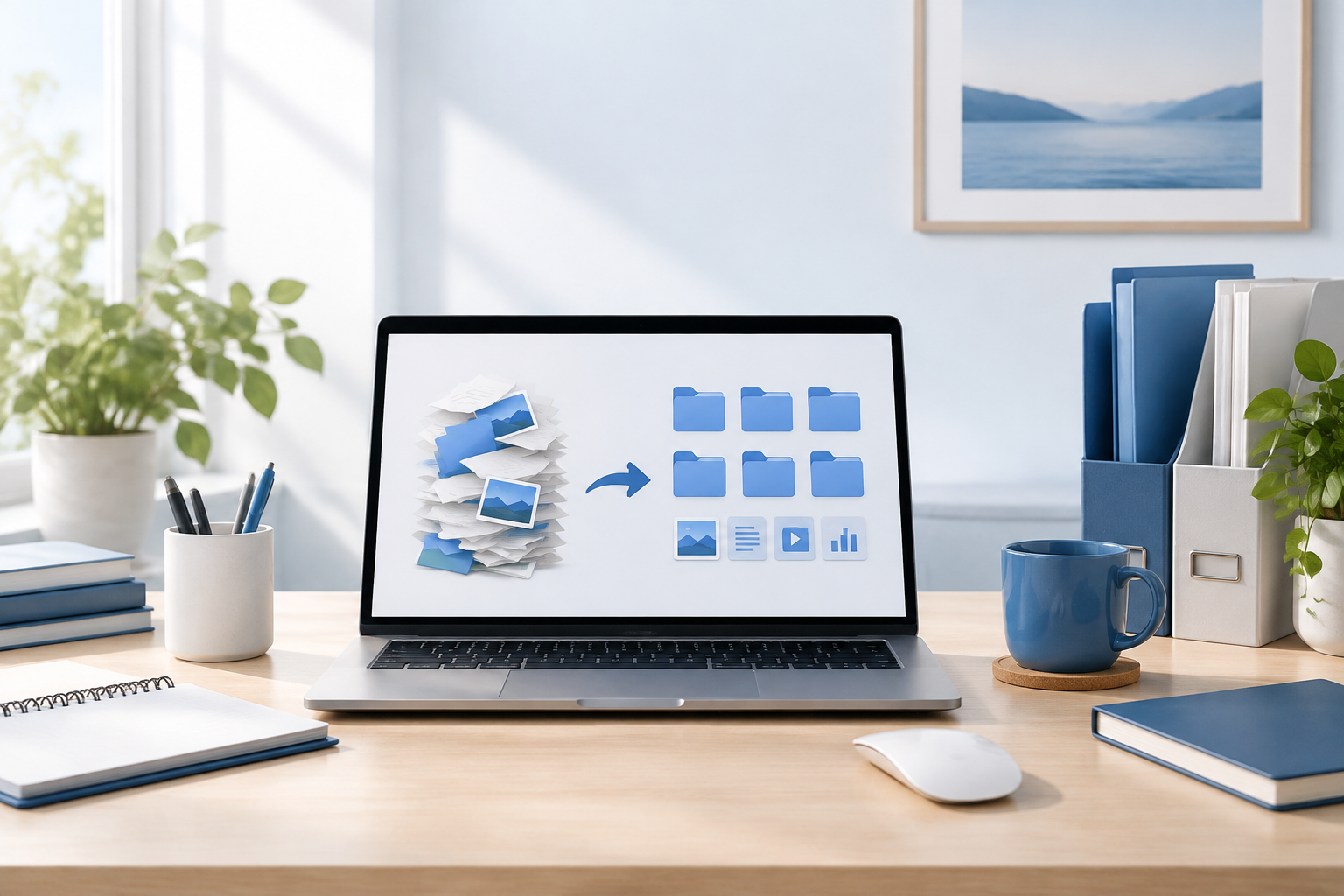
You save a document somewhere obvious, then spend your next meeting searching for it. Your desktop is covered in icons. A folder called “Final” contains several versions, and you’re not sure which one you sent.
These are common file organization mistakes, not signs that you’re bad at keeping things tidy. Usually, your files have grown faster than the habits you use to manage them.
The fix doesn’t have to be a weekend-long overhaul. Start with the problem that interrupts your day most often. A useful system should make your next save easier—not give you another complicated routine to maintain.
1. Using your desktop as a filing cabinet
The desktop feels convenient because everything is visible. But once screenshots, invoices, downloads and unfinished work pile up, visibility stops helping. You begin recognizing files by where their icons sit rather than what they’re called.
A crowded desktop also mixes two different things: files you’re actively using and files you’re keeping for reference.
A manageable fix: Treat your desktop as a work surface, not permanent storage.
Choose a proper home for one active project in your Documents folder or your usual cloud drive. Move that project’s loose files there. If you need quick access, create a shortcut to the folder instead of keeping another copy on the desktop.
For anything you can’t place immediately, a clearly named “To File” folder can be a temporary landing spot. Give it a regular review time so it doesn’t become a hidden version of the same pile.
On Windows, check whether your Desktop is backed up through OneDrive before moving or deleting large groups of files. Synced changes can affect other devices. Tidy Haus also has guidance on organizing files on Windows.
2. Naming everything “final_v3”
“Final” describes what you thought about a document at one moment. It doesn’t reliably tell you what the file contains, when it was used or whether someone approved it.
Names such as proposal_final_v3_NEW.docx make sense while you’re working. Later, they force you to open several files to understand the differences.
A manageable fix: Name files for the person who will need to recognize them later—even if that person is you.
Include a clear subject, a useful date when relevant, and a status only when it adds meaning. For example:
Oak Street Proposal - 2026-02-12 - Draft.docx
Oak Street Proposal - 2026-02-18 - Approved.pdf
Be consistent about what the date means. A meeting date and a document revision date serve different purposes.
You don’t need to rename your entire archive. Start with active documents and new files. Where your storage service supports version history, it may reduce the need to save a separate file after every small edit. Check how it works before relying on it.
For a closer look at choosing useful names, explore Tidy Haus guidance on naming files.
3. Building folders that go too deep
A detailed folder structure can look organized while being frustrating to use.
If you have to open a department, year, client, project, document type and status folder before saving a single file, you’re making a lot of decisions. Eventually, saving to the desktop starts looking easier.
Deep nesting can also hide folders that contain only one document, without adding much useful context.
A manageable fix: Simplify one frequently used folder before redesigning everything.
Ask yourself:
What do I usually remember when looking for these files?
Which folders genuinely help me choose where to look?
Could a clear filename replace one of these folder levels?
Keep the structure that matches how you retrieve information. If you always think in projects, start there. Don’t add a folder category simply because it seems thorough.
Avoid restructuring shared folders without checking with the people who use them. Moves can disrupt familiar locations and links.
If you’re still unsure what would work across your files and drives, take the 2-minute organization test or book a free 20-minute discovery call at Tidy Haus. You’ll talk with a digital organizing consultant, see a couple of useful hints or quick fixes, and get a clear plan or proposal you can use with us or independently—at your pace and with your resources.
4. Keeping duplicates across several drives
A document arrives by email. You download it, copy it into a project folder, then upload it to a shared drive. Later, someone edits one copy while you work from another.
The problem isn’t simply wasted space. It’s uncertainty about which file to trust.
A manageable fix: Choose a main working location for one active project.
Tell everyone involved which location holds the current files. Where permissions allow, share a link to that location instead of sending another editable attachment.
Before deleting apparent duplicates, compare their contents—not just their names. Check modification dates, file sizes and any available version history. Two files with the same name may contain different work; two differently named files may be identical.
Keep a verified backup before a large cleanup. Remember that synchronization is not the same as an independent backup: deleting a synced file may remove it from connected devices too.
An intentional backup has a different job from a stray working copy. Don’t remove it just because it contains the same files.
5. Mixing work and personal files
When household paperwork lives beside client documents, every search becomes noisier. It can also become harder to tell which account owns a file or who can access it.
This often happens when a browser remembers the wrong account, or when everything downloads into the same folder.
A manageable fix: Establish a clear boundary for new files first.
Keep work documents in the locations approved by your employer or business. Keep personal documents in your own appropriate storage. Separate browser profiles can help you notice which account you’re using before uploading or saving something.
Check the destination and sharing permissions before moving sensitive records. A folder that feels private may sit inside a shared workspace.
Don’t transfer company information into a personal account just to make it easier to find. Follow your workplace’s storage and retention rules. If existing files are mixed together, sort a small, familiar group first rather than moving everything in bulk.
6. Having no weekly file habit
Even a sensible folder structure drifts when new files arrive every day. Downloads accumulate, temporary copies linger and finished projects stay mixed with active work.
That doesn’t mean the system has failed. It means it needs a small maintenance habit.
A manageable fix: Attach a brief file review to something you already do each week, such as planning the week ahead or finishing your last workday.
Keep the review focused:
Check your desktop, Downloads folder and temporary landing folder.
Put recognizable files into their existing homes.
Give unclear active files names you’ll understand later.
Flag anything uncertain instead of guessing or deleting it.
The goal isn’t an empty computer. It’s fewer unanswered questions the next time you need a document.
Notice what repeatedly gets stuck. If the same kind of file never has an obvious home, adjust that part of your structure. A system you can maintain on an ordinary busy week is more useful than one that only works immediately after a big cleanup.
Still struggling? Let's find your next step
You don't have to figure everything out alone. Take our 2-minute organization test, or book a free 20-minute discovery call with Tidy Haus.
Here is what you get from your discovery call:
20 minutes with a digital organizing consultant, at no cost to you.
A plan/proposal with solutions for moving forward that you can use with Tidy Haus or without us.
A couple of hints or quick fixes we can show you on the call.
A clear, coherent and organized plan for moving forward at your pace, with your resources.
Book your free discovery call and let's work out a way forward that fits you.