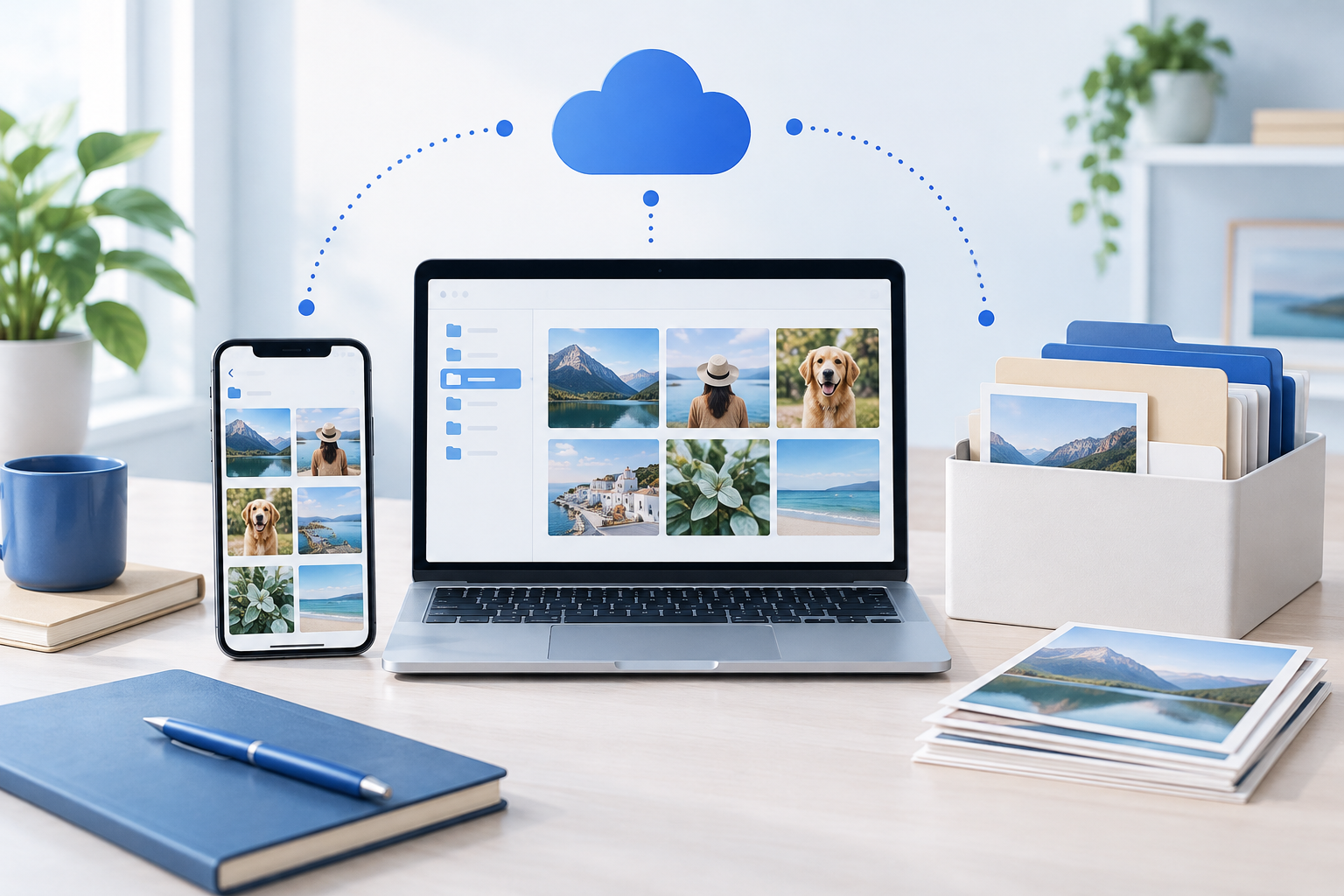
You can manage photos across several services without starting with a massive deletion session. The plan is to find every place your photos live, choose one home library, bring copies into it, review duplicates safely and keep a separate backup.
This gives you a way forward when recent pictures are on your phone, family albums are in Google Photos, older files are in Dropbox and a previous computer holds everything else.
Good online photo management is not about making every folder perfect. It is about knowing where to look, what is protected and where the next batch belongs.
1. Find every place your photos live
Before moving anything, make a simple inventory. A note on your phone or a sheet of paper is enough. Record each location, the account or device it belongs to, and what you think it contains.
Check the places that are easy to forget:
Current and old phones, tablets and computers.
iCloud Photos and every Google Photos account you have used.
Dropbox, OneDrive and other cloud folders.
External drives, memory cards and old computer backups.
Shared albums, messages and email attachments containing photos you never saved elsewhere.
You do not need an exact count. “Old laptop: holidays before we had children” is useful. So is “Google account from previous job: access uncertain.”
Mark anything you cannot currently open. Keep old devices and storage cards unchanged until you know whether their photos exist somewhere else. If a work account is involved, check your employer’s rules before transferring files.
For families, ask each person where their pictures go. One household may have several libraries without anyone realizing it.
This article focuses on the cross-service decisions. For narrower help, look for the iPhone photos post and the photo organization service post through Tidy Haus, rather than trying to solve every phone setting here.
2. Pick one home library, not necessarily one account
Your home library is the place you will check first when you want a picture. It should also be the destination for future imports.
That might be iCloud Photos, Google Photos or a computer-based library with cloud access. Dropbox can hold photo files, but a folder-based collection works differently from a dedicated photo library. Choose based on how you actually find and share pictures, not just which service already has the most files.
Consider these practical questions:
Can the people who need access use it comfortably?
Does it accommodate your originals, videos and expected growth?
Can you get your files back out if you change services?
Will someone know how to maintain it?
“One home” does not mean combining everyone’s private pictures or sharing a single account password. A family might keep personal libraries while choosing one destination for shared family memories.
Write down a simple rule: “Finished family photos belong here; camera cards and downloads are temporary sources.”
You do not have to cancel other services immediately. First establish the destination. Deciding what to retire comes after you have checked the transfer and your backup.
3. Bring copies in without deleting the sources
Consolidation should begin as a copying project, not a moving project. Keep the original locations intact while you test your approach.
Start with a small, recognizable batch, such as one holiday. This lets you see how your chosen library handles dates, videos and edited pictures before committing a large collection.
Use this basic sequence:
Get the actual files. A thumbnail or preview is not proof that the full-resolution original is stored on your computer. Cloud-optimized libraries may need to download originals first.
Copy or export into a clearly named staging folder. Note the source so you can trace problems later. Allow enough local storage for downloads and temporary copies.
Import the test batch into your home library. Wait for the import and any cloud upload to finish.
Check the result. Open representative photos and play videos. Check dates, resolution and whether important edits came across.
Albums, captions, favorites, Live Photos and other special formats do not always transfer unchanged. Some exports include companion files containing extra information. Keep those files until you understand whether they are needed.
A matching file count is useful, but it is not the only check: different services may represent one photo as several files.
If you are unsure which source contains the originals—or would rather have a person handle the organizing—explore photo organizing help at Tidy Haus. You can take the 2-minute organization test or book a free 20-minute discovery call with a digital organizing consultant. The call can help turn competing accounts and devices into a clear plan you can use with Tidy Haus or on your own.
4. Remove duplicates only after checking your copies
Duplicate cleanup comes after consolidation, not before it. Otherwise, it is too easy to discard the better version while keeping a smaller copy saved from a message.
Before deleting anything, make sure you have a separate, verified copy of the files you will be reviewing. Do not assume that the original source is independent if it syncs with your destination.
Separate duplicate candidates into two groups:
Exact copies: files with identical contents, even if their names differ.
Similar pictures: bursts, edits, resized versions, screenshots and different takes of the same scene.
The second group needs judgment. An edited photograph and its original may both be worth keeping. A small shared copy may have sentimental context even when a higher-resolution version exists elsewhere.
Use duplicate-finding tools to identify candidates, not as permission to delete everything they flag. Review a small group first. Compare resolution, sharpness, edits and any information you care about.
Most importantly, understand what “delete” means in that location. Deleting from a synced library can also remove the item from connected devices. A recovery folder may provide temporary protection, but it is not a backup.
Leave questionable pairs alone. A few extra copies are less disruptive than losing the only version you wanted.
5. Keep a second backup outside the same sync system
Your home library makes photos easier to use. A separate backup protects you when something goes wrong with that library.
Sync and backup are not interchangeable. Sync keeps locations aligned, which can include copying deletions or unwanted changes. Seeing a picture on both your phone and computer does not necessarily mean you have two independently protected copies.
Choose a backup that stays separate from everyday library changes. Depending on your setup, that could mean an external drive containing downloaded originals, or a backup service that retains recoverable versions rather than simply mirroring the library.
If you use an external drive, connect it for backups and disconnect it afterward. Consider protection against loss or damage in the same location as your computer, too.
Check that the backup contains real photo and video files—not just cloud placeholders. Open a selection directly from the backup, and confirm you can restore something without relying on the original library.
Finally, assign ownership. Decide who checks that new photos reach the home library, who updates the backup and when those checks fit into your routine. Keep a short note identifying the library, backup location and any unfinished transfers, without storing passwords in it. That makes the system maintainable even when the person who set it up is busy.
Still struggling? Let's find your next step
You don't have to figure everything out alone. Take our 2-minute organization test, or book a free 20-minute discovery call with Tidy Haus.
Here is what you get from your discovery call:
20 minutes with a digital organizing consultant, at no cost to you.
A plan/proposal with solutions for moving forward that you can use with Tidy Haus or without us.
A couple of hints or quick fixes we can show you on the call.
A clear, coherent and organized plan for moving forward at your pace, with your resources.
Book your free discovery call and let's work out a way forward that fits you.